


Member Portal Guide
How to Register a Rental Guest
Use this guide to log in, register rental guest information, complete payment, and confirm the guest registration in the member portal.
Before you begin, have the following ready:
- Guest first and last name
- Guest email
- Guest phone number
- Check-in date & Check-out date
- Number of guests
- Payment method
1
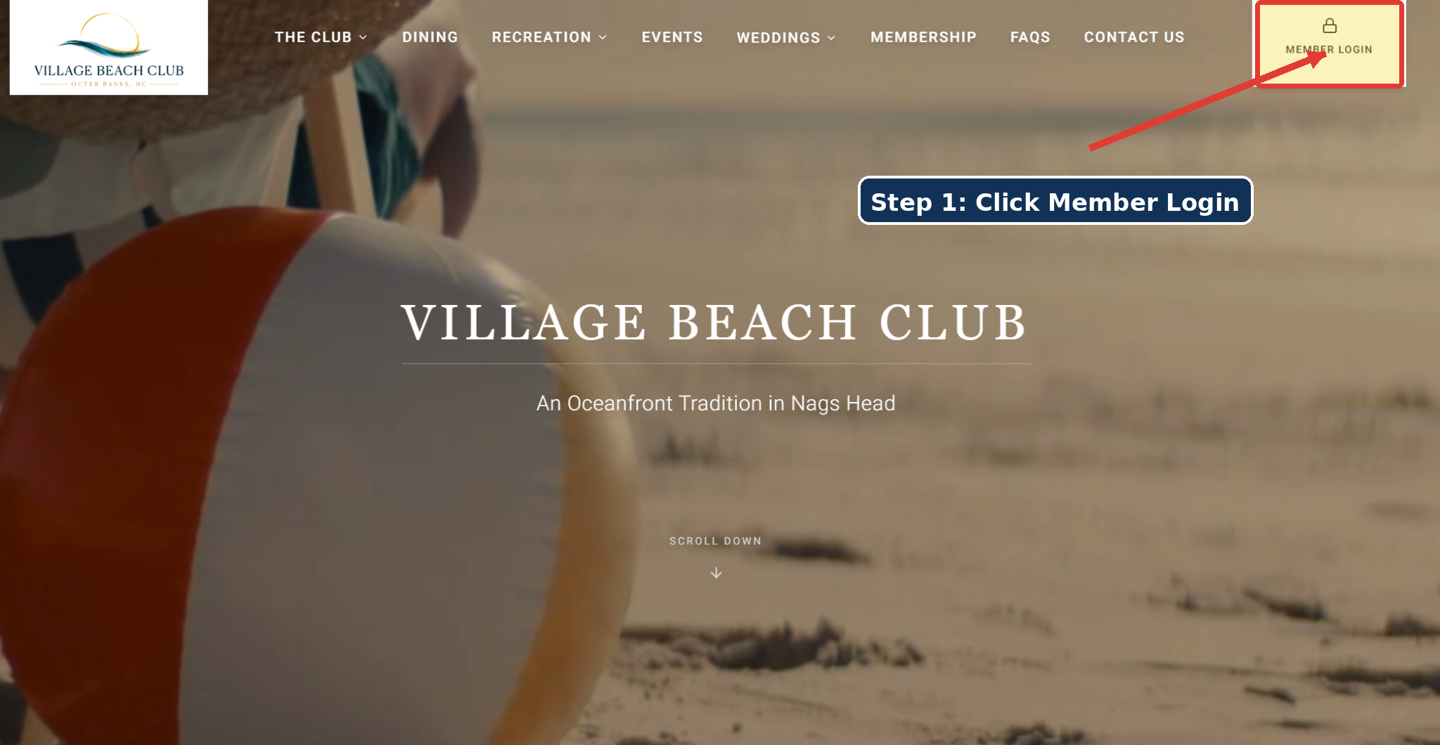
Go to the Village Beach Club website and click Member Login.
- Visit www.villagebeachclubobx.com.
- Click the Member Login button in the upper-right corner of the website.
2
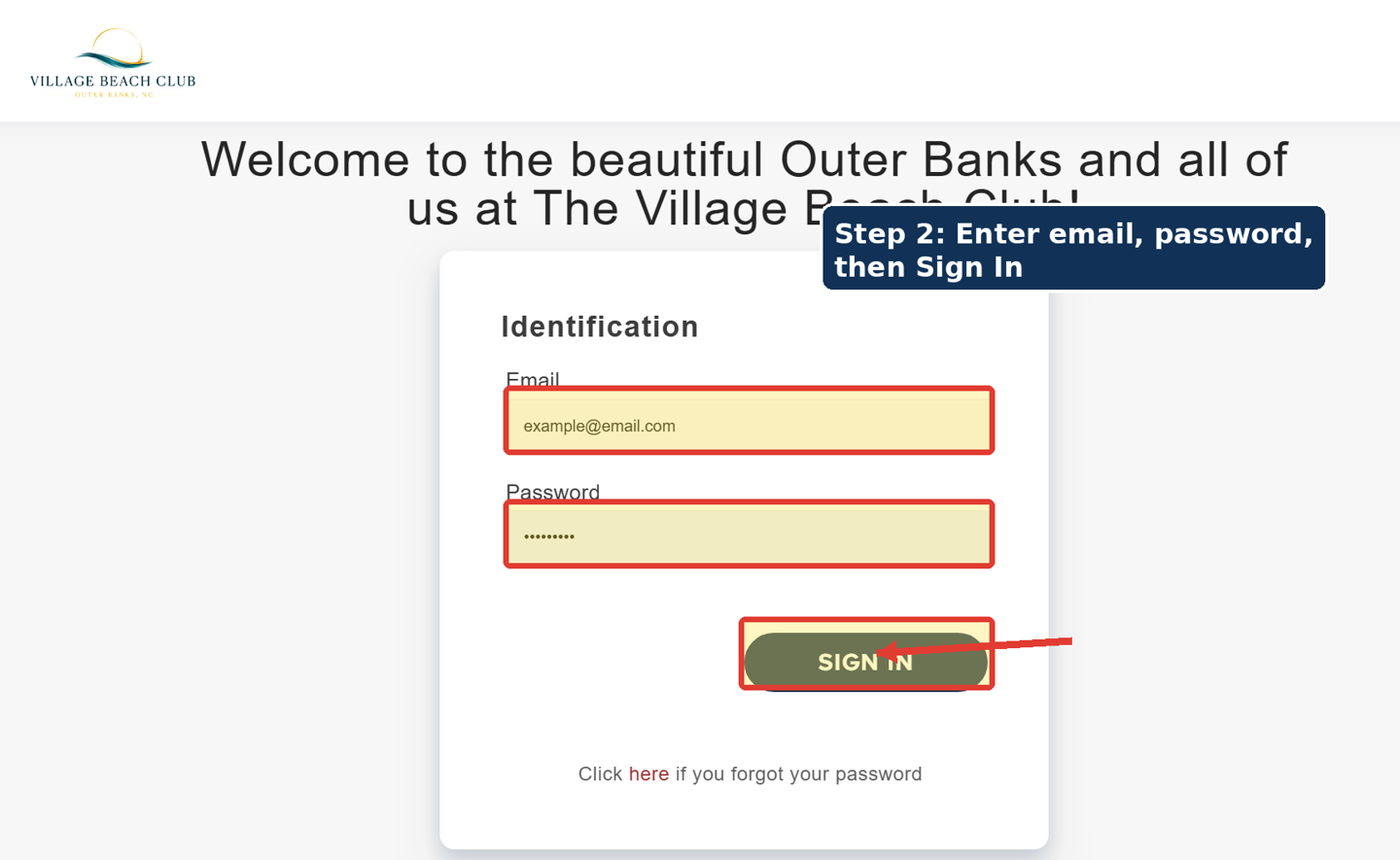
Sign in to the member portal.
- Enter the email address and password associated with your membership account.
- Click Sign In. If you forgot your password, use the password reset link.
3
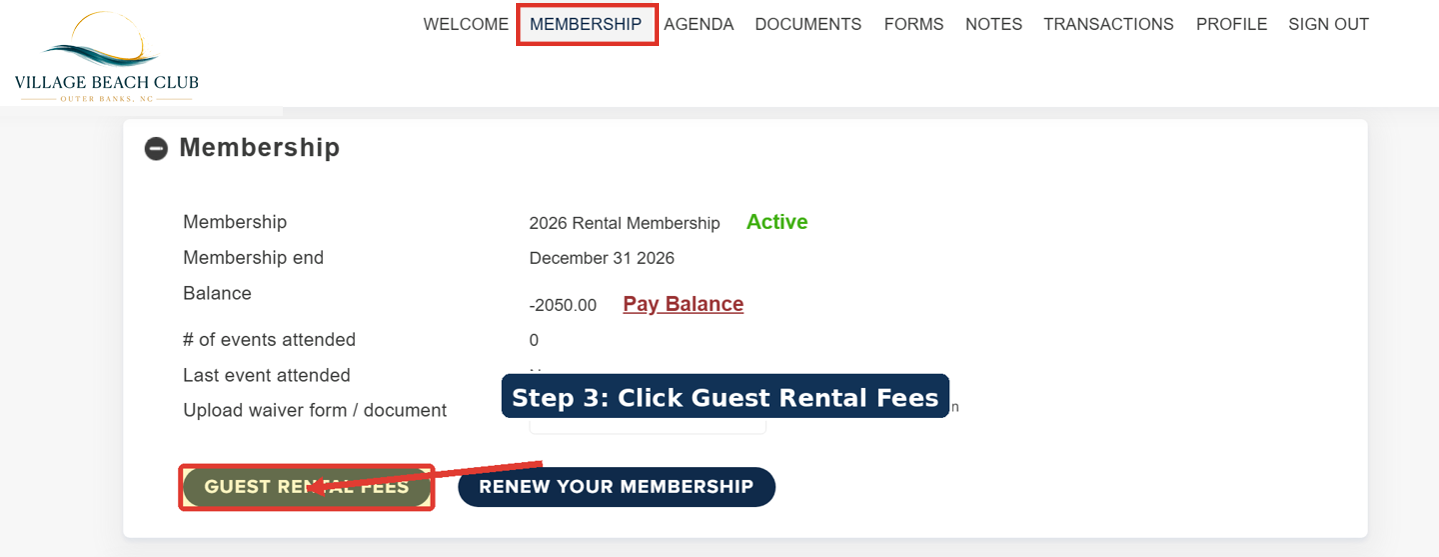
Open the rental guest registration area.
- Click Membership tab at top menu bar of the page.
- Once on the Membership tab, you will see the Guest Rental Fees button
- Click Guest Rental Fees to begin registering a rental guest.
4
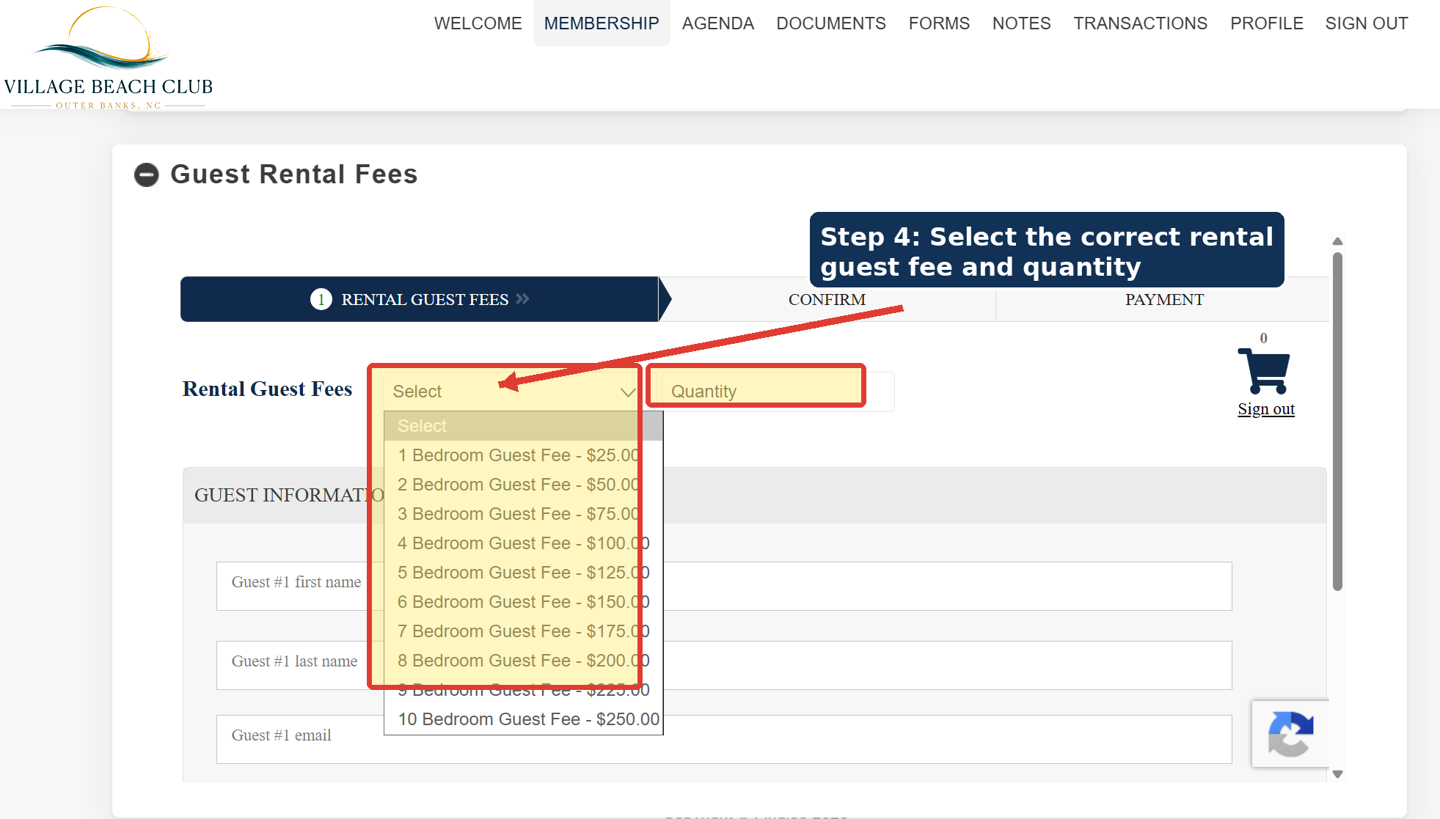
Select the correct rental guest fee.
- Use the dropdown to select the correct bedroom-size guest fee for the rental property.
- The quantity will always be 1 so you are sure to enter the correct guest information.
5
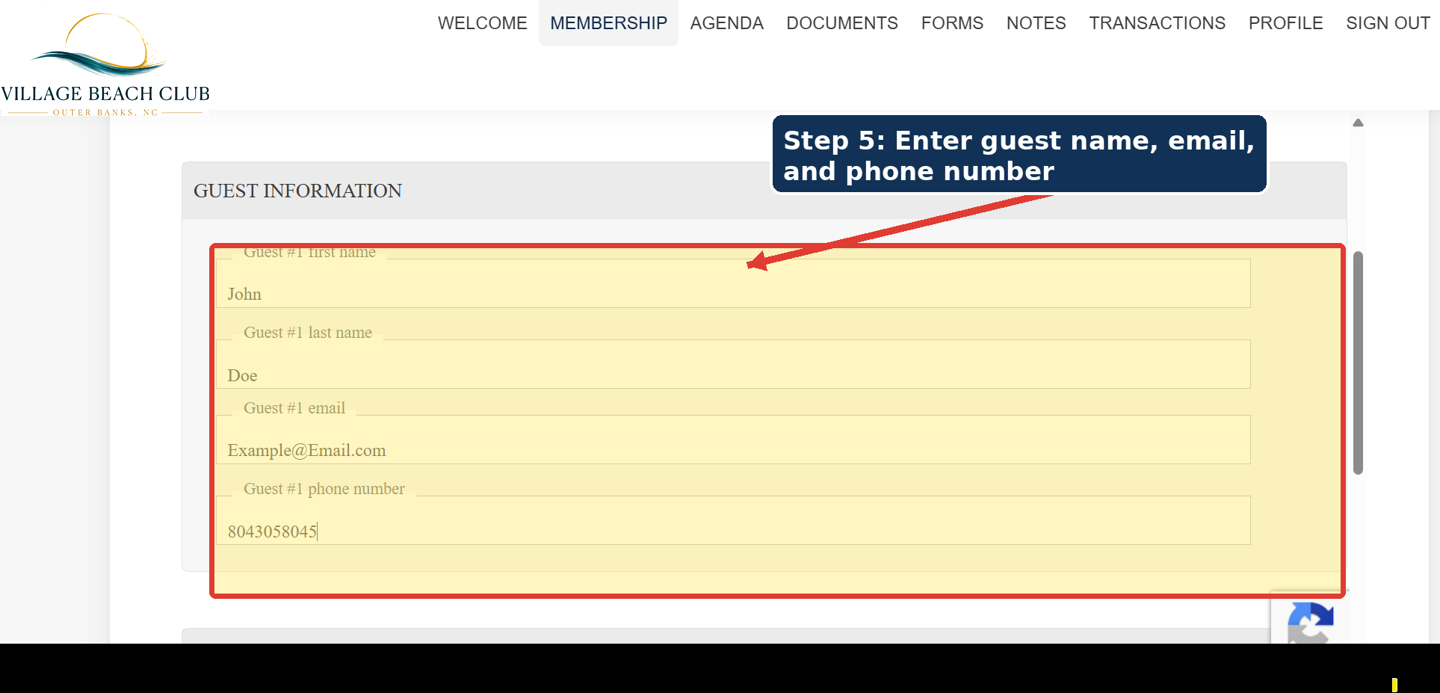
Enter the guest contact information.
- Type the guest’s first name and last name.
- Enter the guest’s email address. This field is required.
- If you do not know the guest’s email address, enter no@email.com to bypass the field.
- Using this placeholder lets our team know the guest will not receive beach club access instructions or member updates by email, so staff can be prepared for their arrival.
- Enter the guest’s phone number, if available. If you do not have a phone number, you may leave this field blank.
- Carefully review the spelling of all information before submitting, as these details will be used for the guest’s registration record.
6
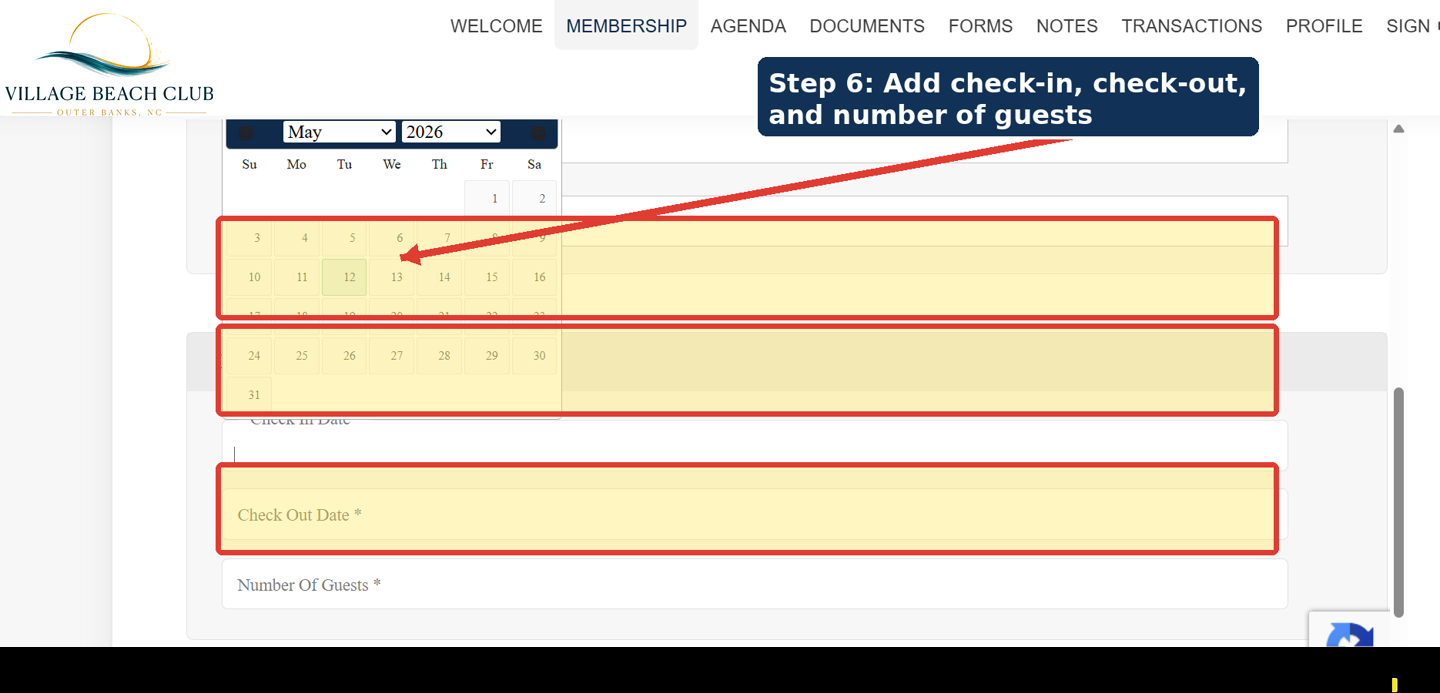
Enter the rental stay information.
- Select or type the check-in date and check-out date.
- Enter the total number of guests for the rental stay.
7
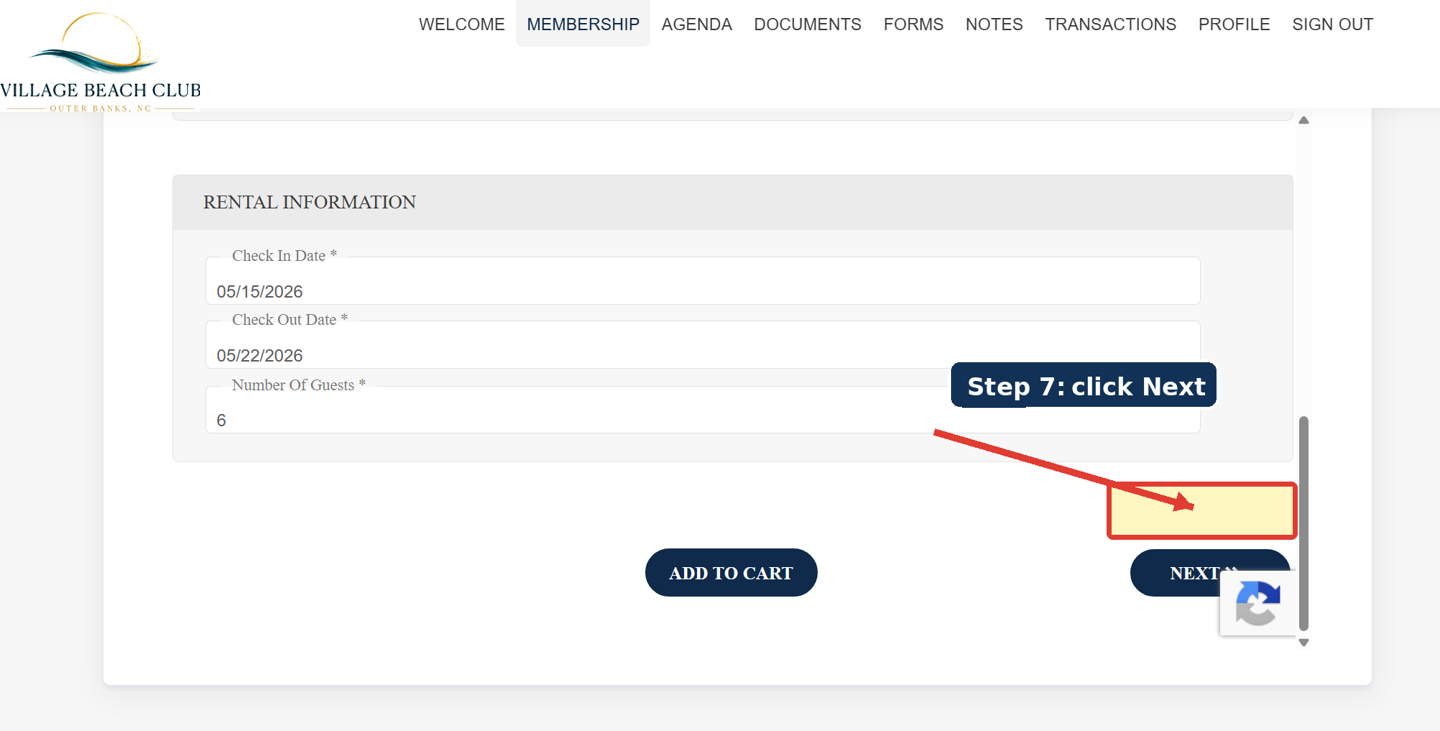
Add the registration to the cart.
- Click next to continue to the confirmation step.
8
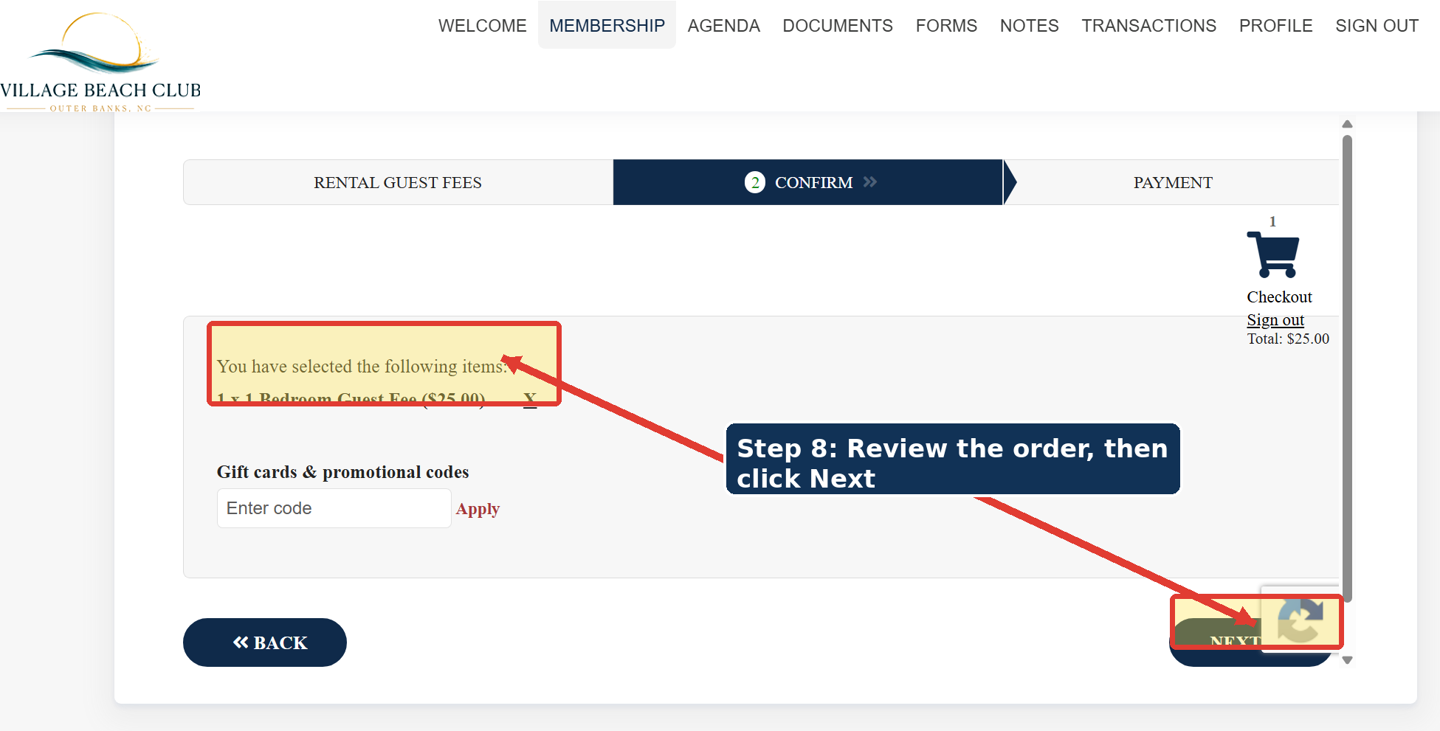
Review and confirm the cart.
- Check that the selected guest fee and total are correct.
- Click Next to move to payment.
9
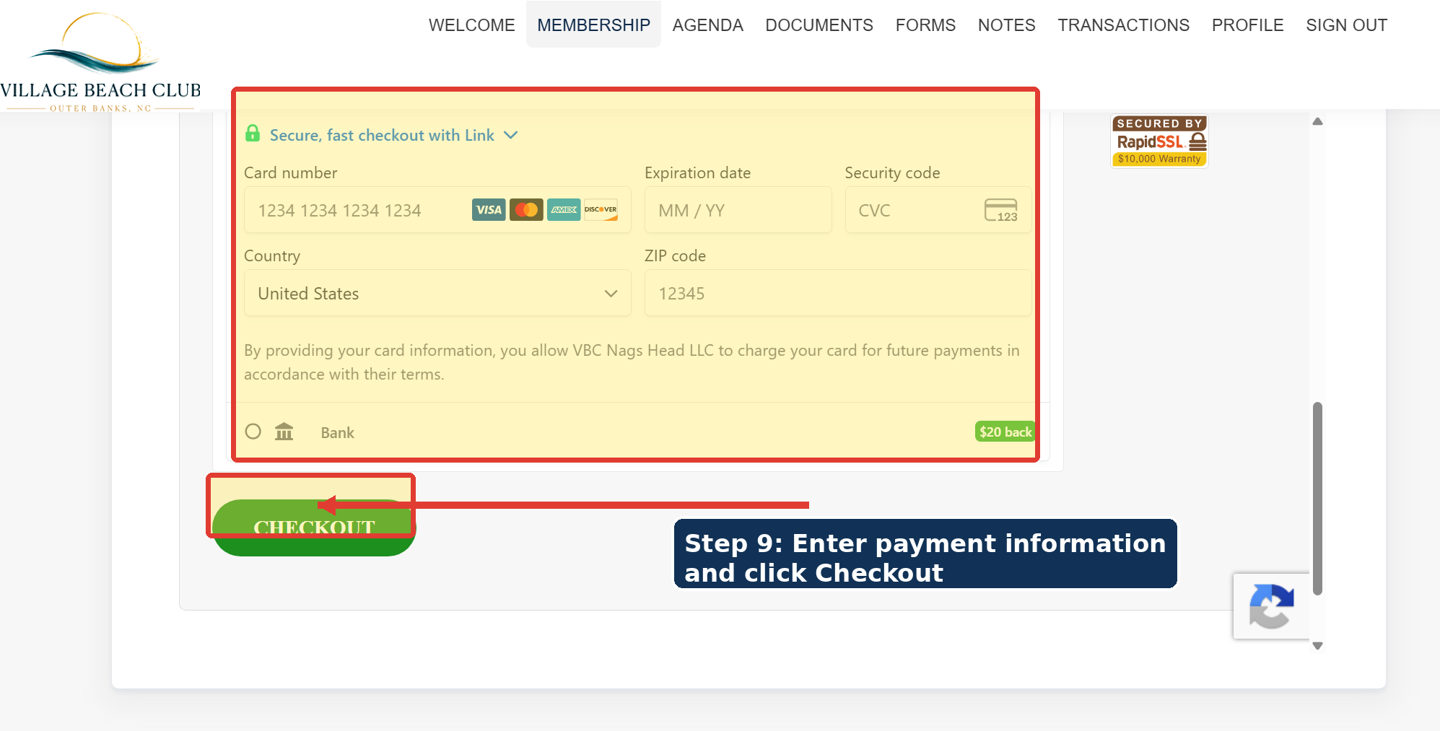
Complete payment.
- Enter the payment information requested on the payment screen.
- Click Checkout to submit the rental guest registration payment.
10
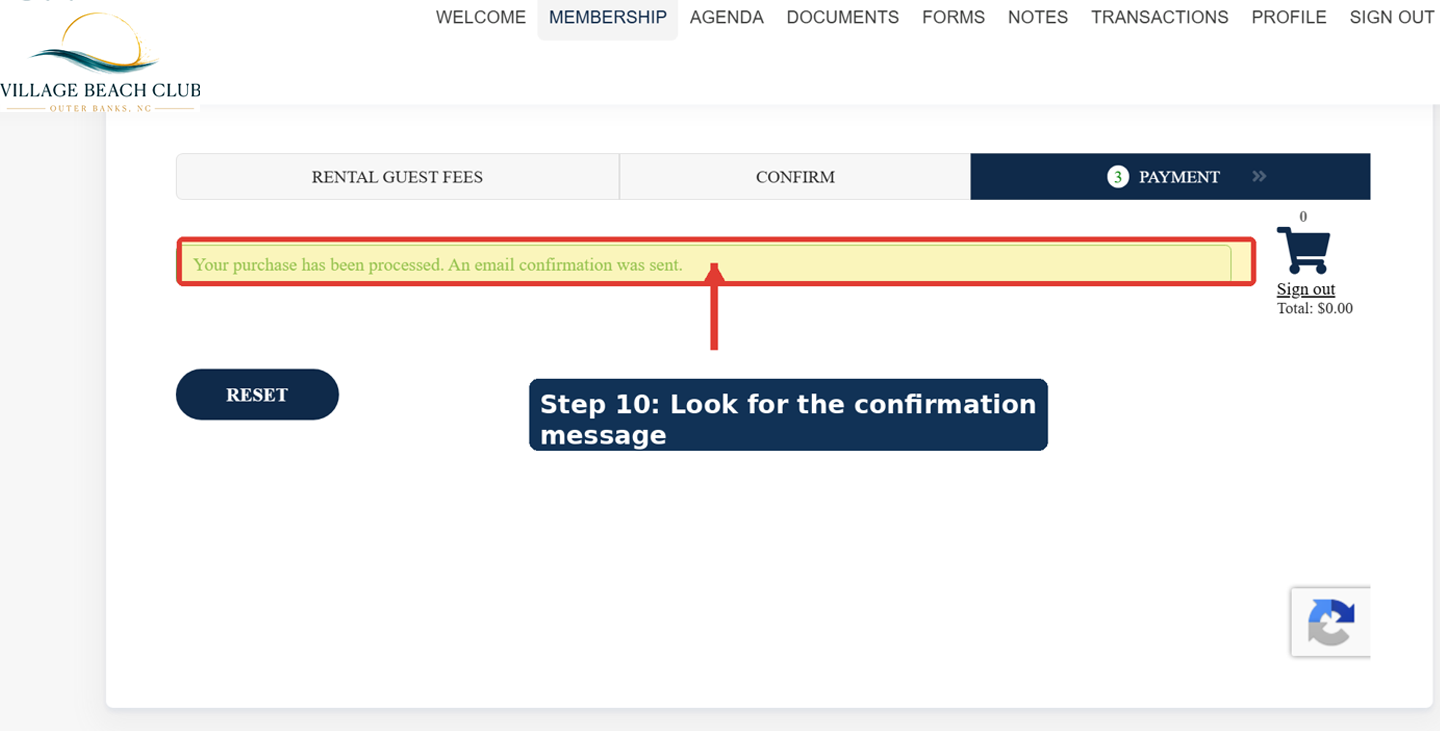
Confirm the purchase was processed.
- Look for the message stating that the purchase has been processed and an email confirmation was sent.
- Do not refresh or close the page until this confirmation appears.
11
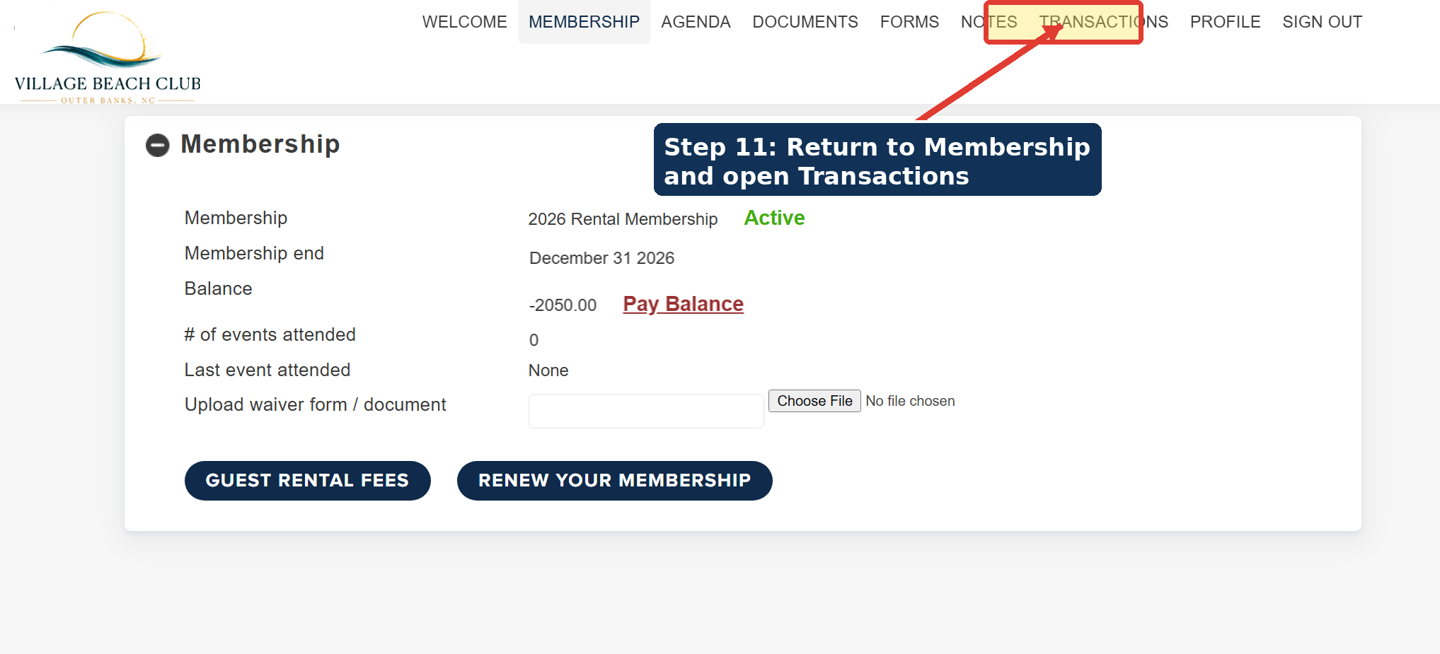
Return to the account area and open Transactions.
- After the payment is complete, you can return to the Membership area and register an additional guest or to review all registered guests you can navigate to the transactions tab.
- Click Transactions to review previous guest registrations and payment activity.
12
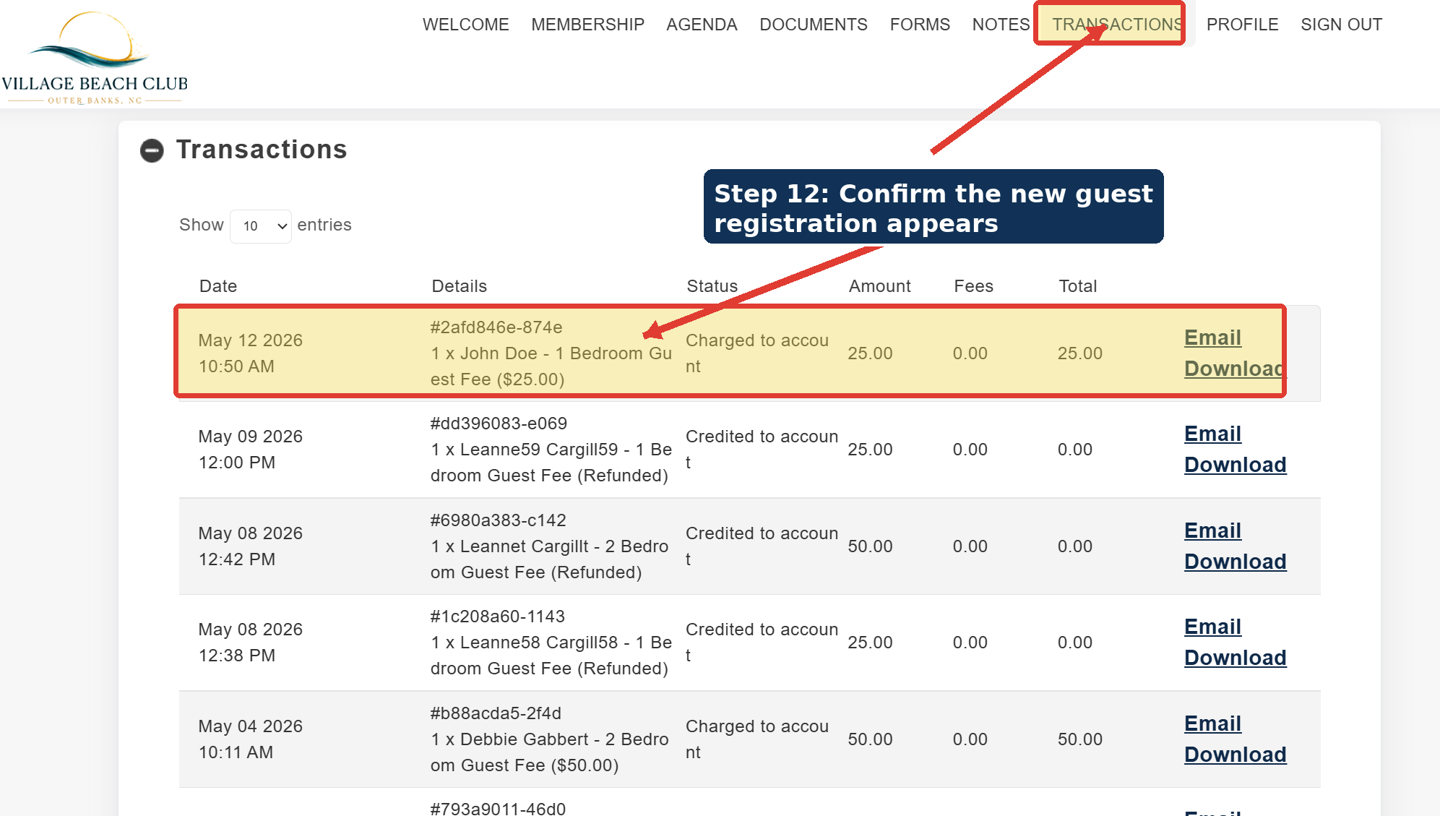
Verify the guest registration is listed.
- On the Transactions page, confirm the guest registration you just completed appears in the list.
- Use Email or Download if you need to send or save a receipt/confirmation.
Need help?
- •Make sure you are using the email address tied to your Village Beach Club member account.
- •If a payment or confirmation does not appear, check the Transactions tab before trying the registration again.
- •Keep the email confirmation or downloaded receipt for your records.